Member Types
The Member Types menu is used to manage various types of members in the system, including minimum points settings, benefits, and membership status.
1. Opening Member Type Settings
- Open the Members menu in the sidebar.
- Select Member Types.
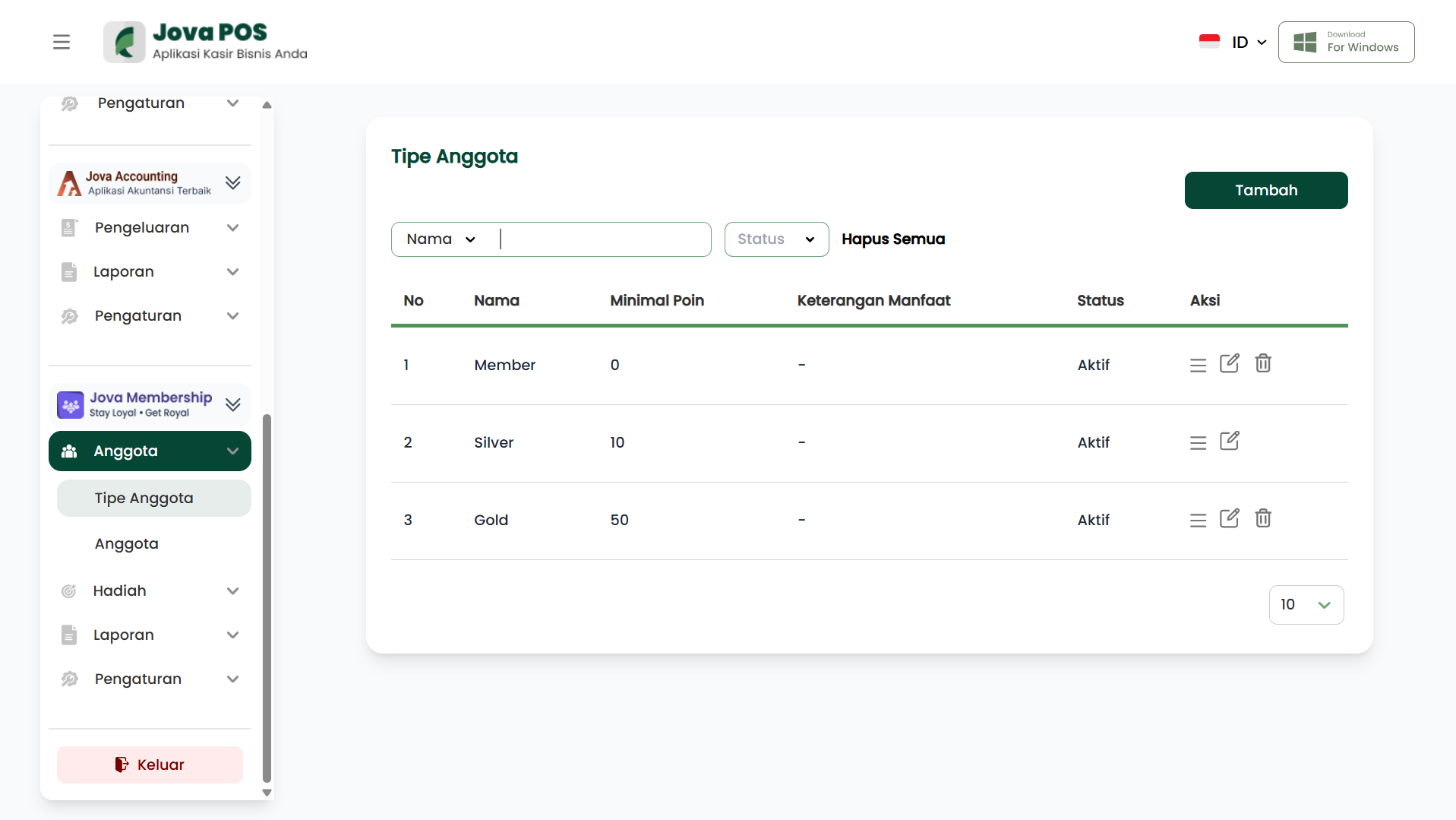
This page will display a list of existing member types and allow you to manage that data.
2. Viewing the Member Type List
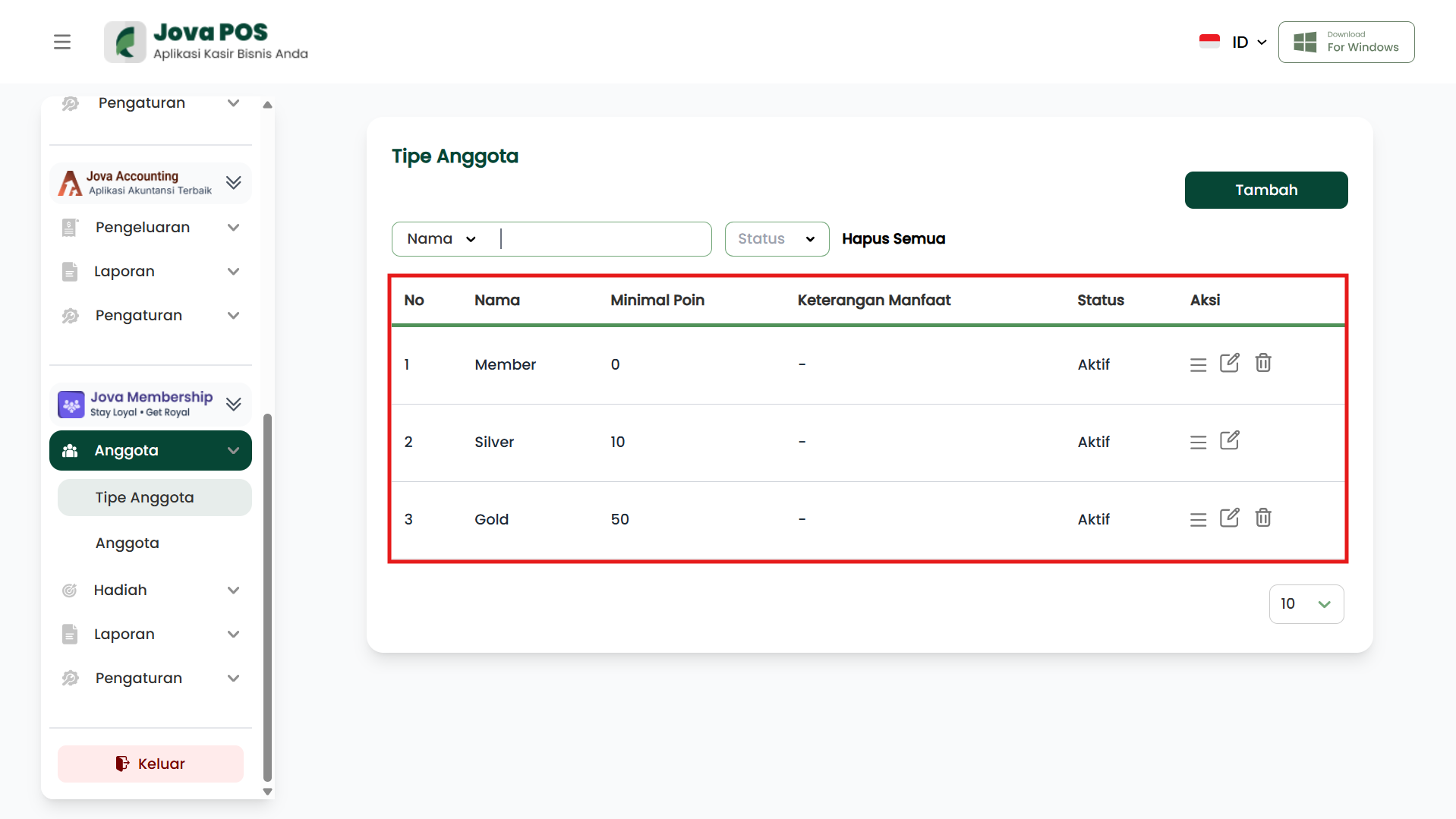
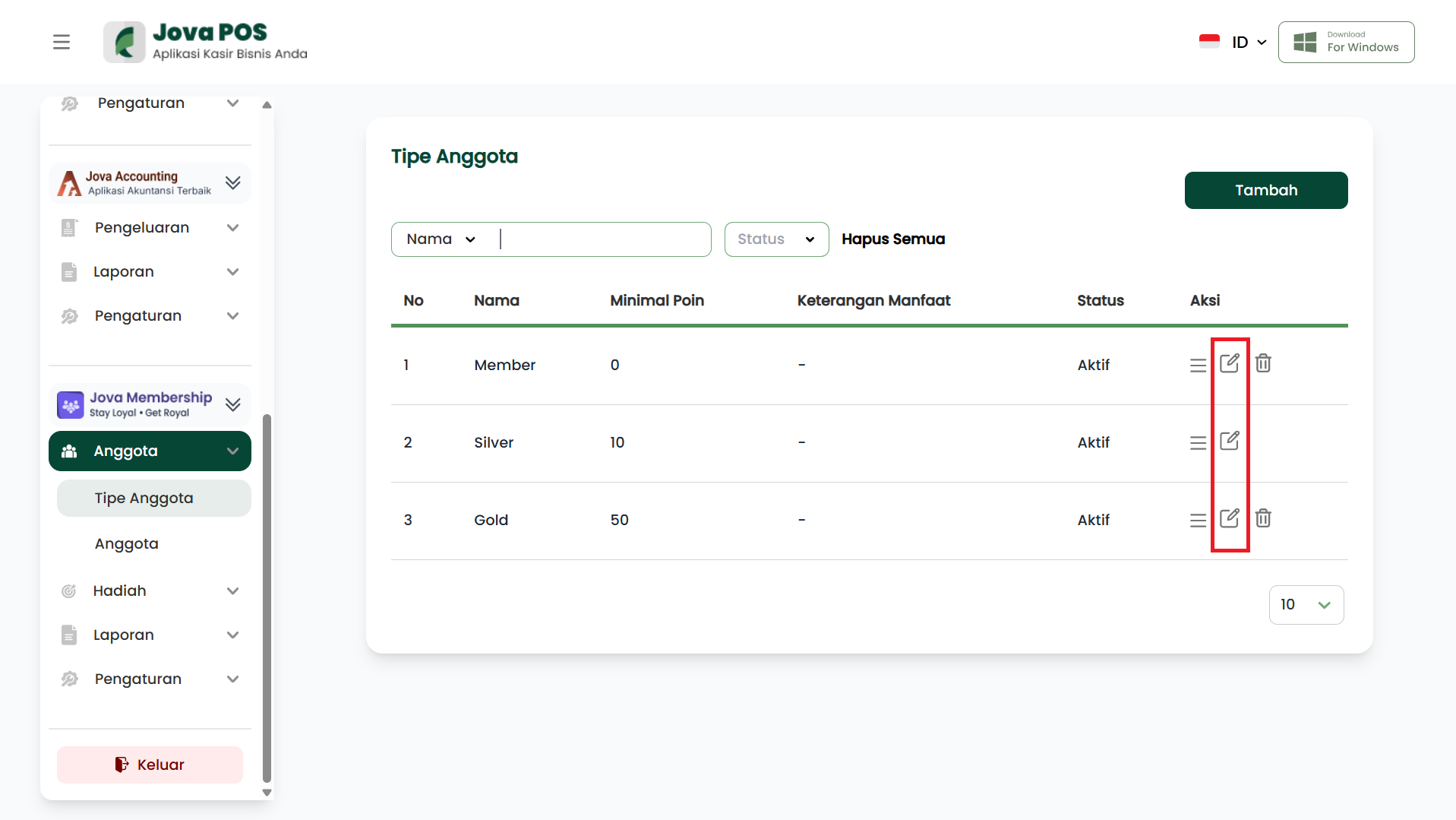
On the Member Types page, you can view the list of existing member types. The columns displayed include:
- No: Serial number.
- Name: Member type name.
- Minimum Points: Points required to obtain that member type.
- Benefit Description: Explanation of member benefits.
- Status: Active or inactive status.
- Action: Options to edit or delete member types.
3. Adding, Editing, and Deleting Member Types
Adding a New Member Type
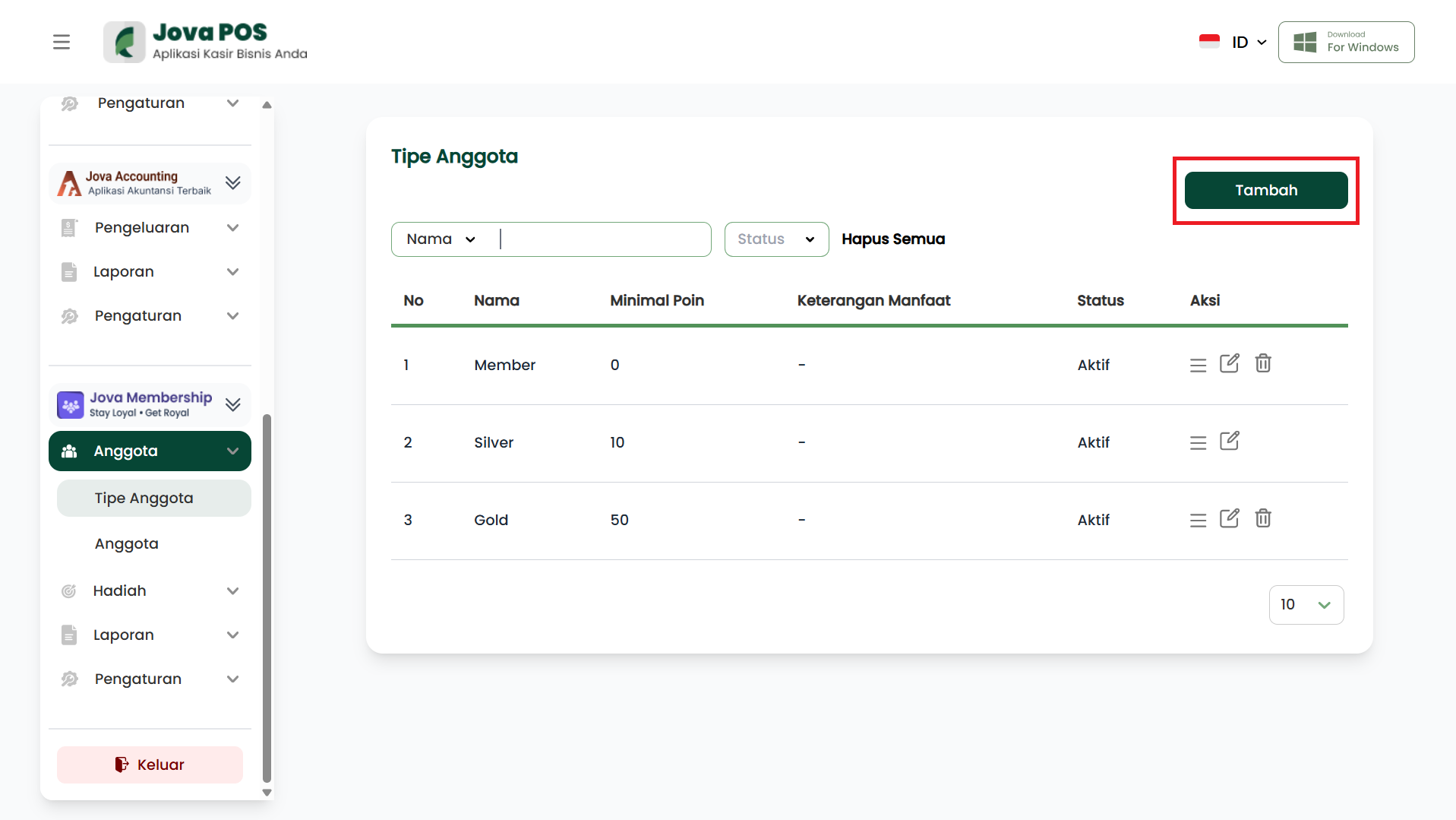
- Click the Add button at the top right corner of the page.
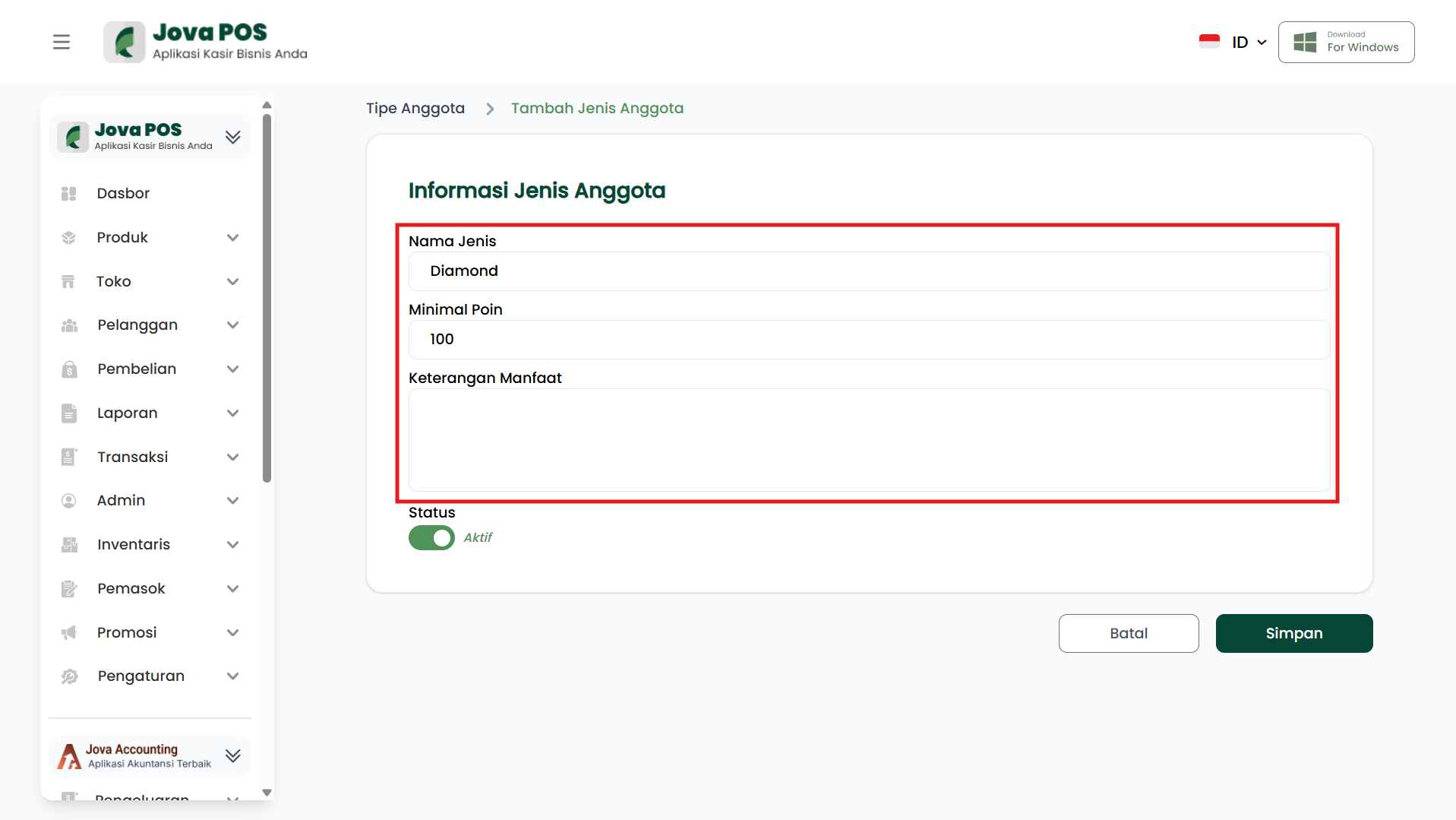
- Fill in the member type information, such as:
- Type Name: The member type name (e.g.: Member, Silver, Gold).
- Minimum Points: The minimum points required to obtain that member type.
- Benefit Description: Description of benefits given to that member type.
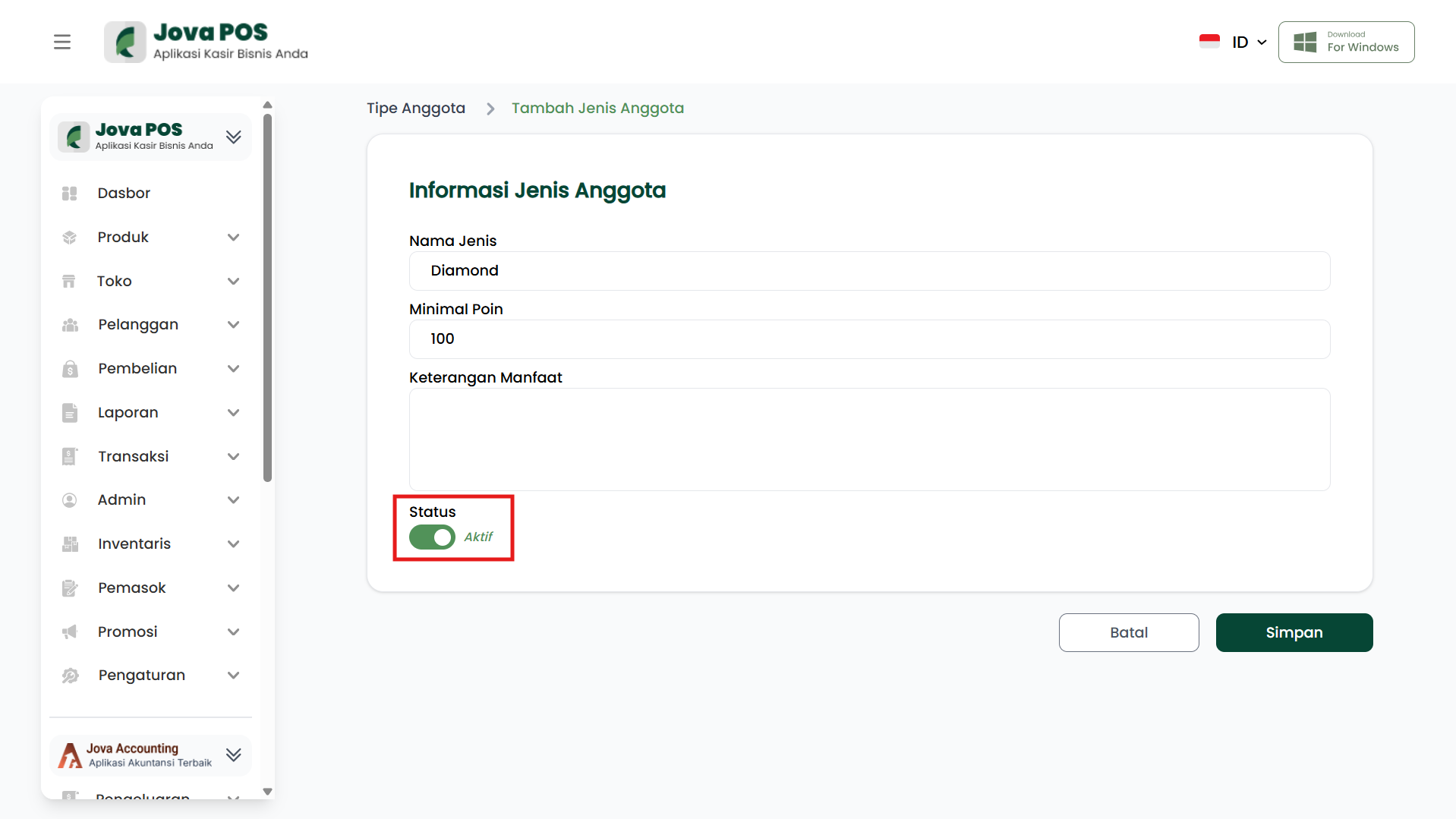
- Set the Status (Active or Inactive).
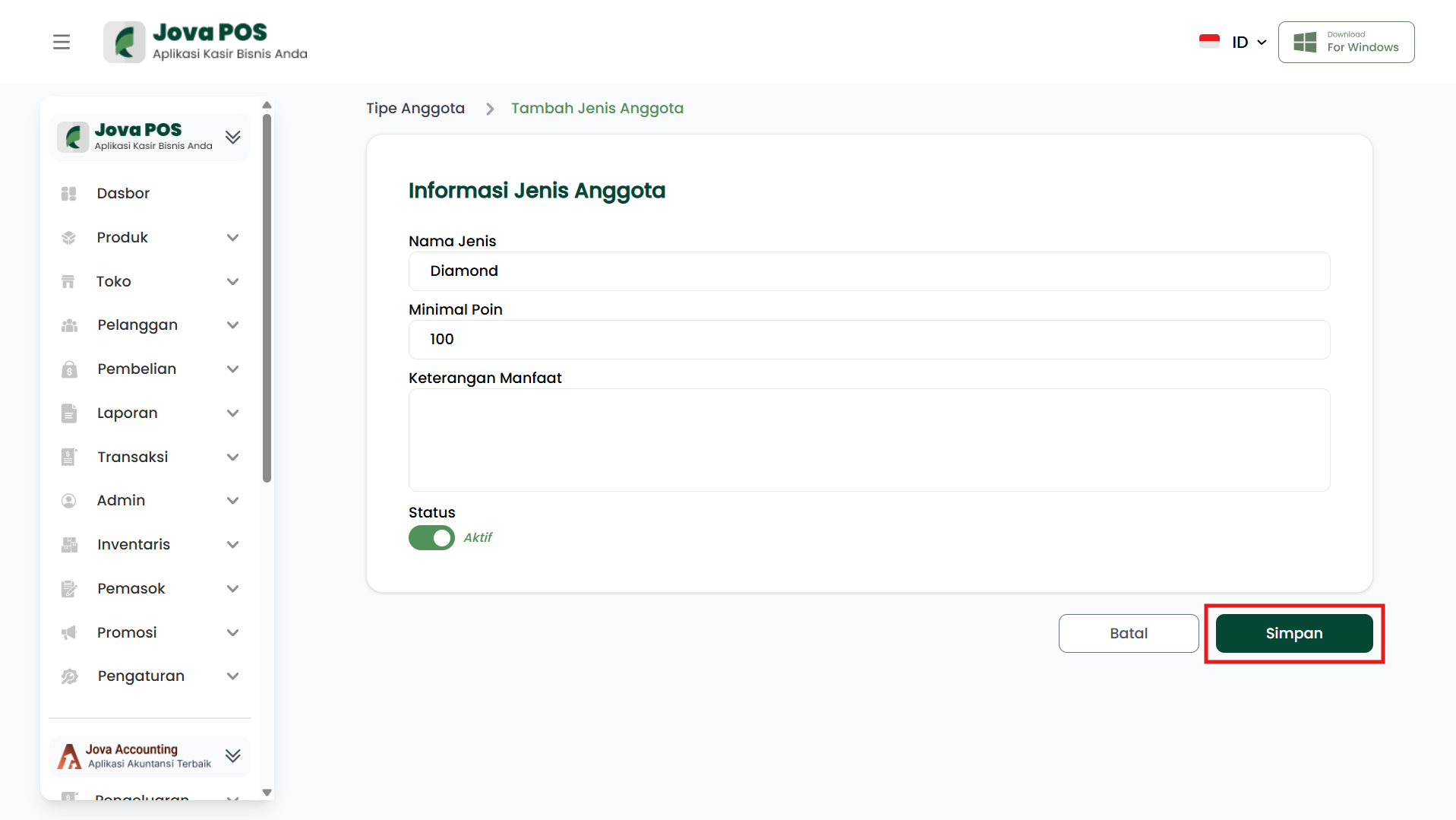
- Click Save to save the member type data.
Editing a Member Type
- On the Member Types page, find the member type to edit.
- Click the Edit button in the Action column to the right of the member type.
- Change the necessary information.
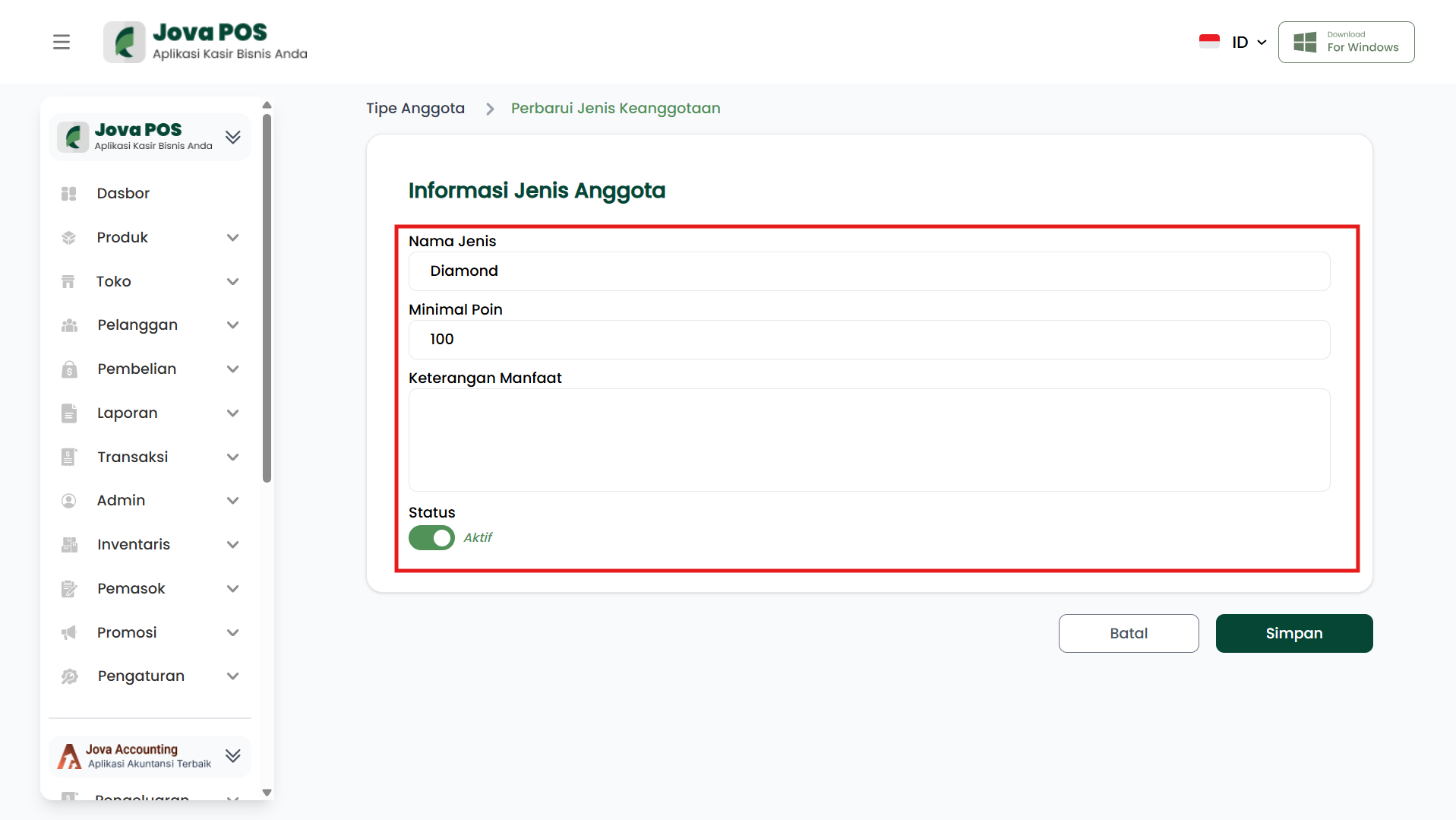
- Click Save to save the changes.
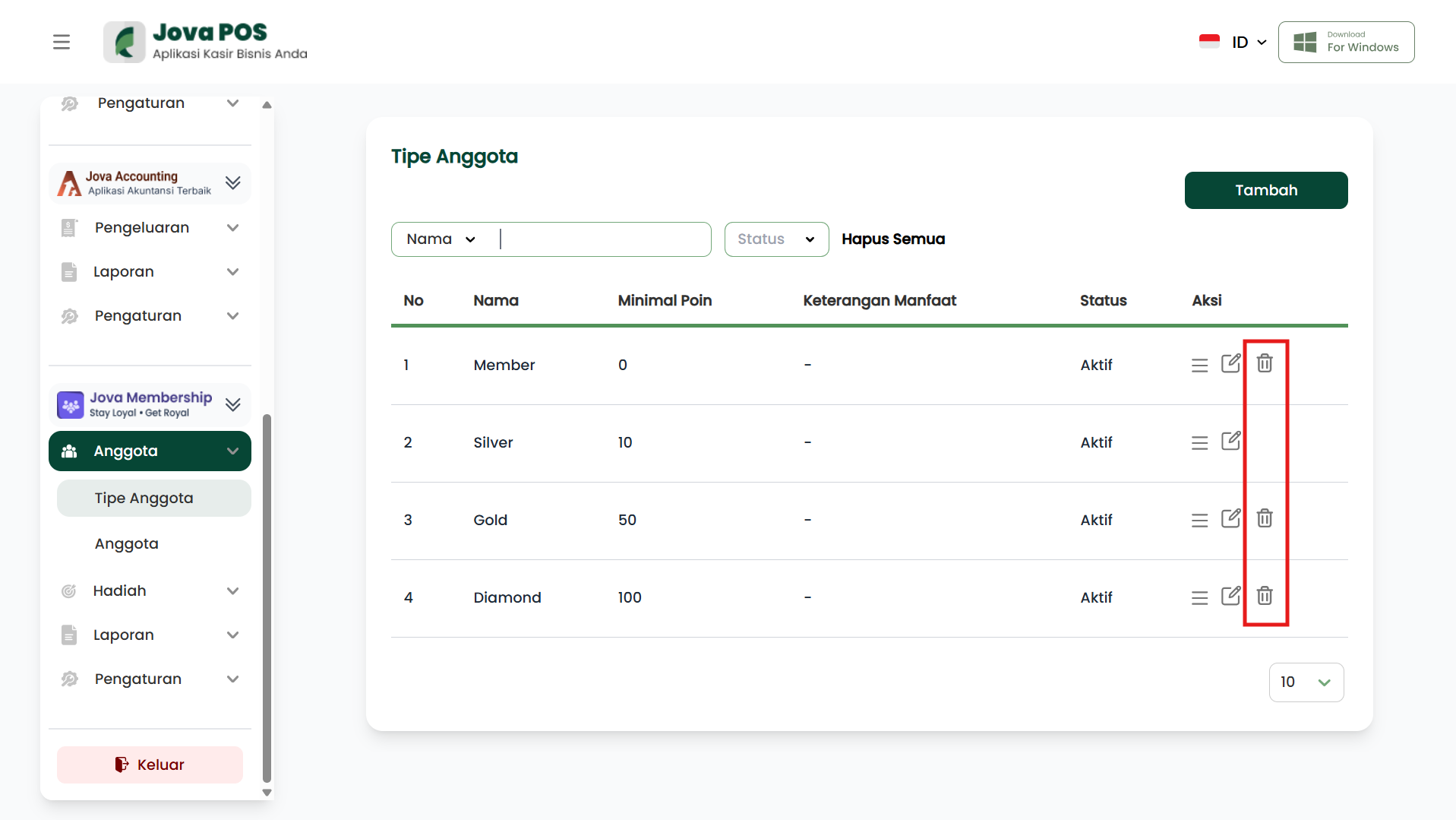
Deleting a Member Type
- On the Member Types page, find the member type to delete.
- Click the Delete button in the Action column to the right of the member type.
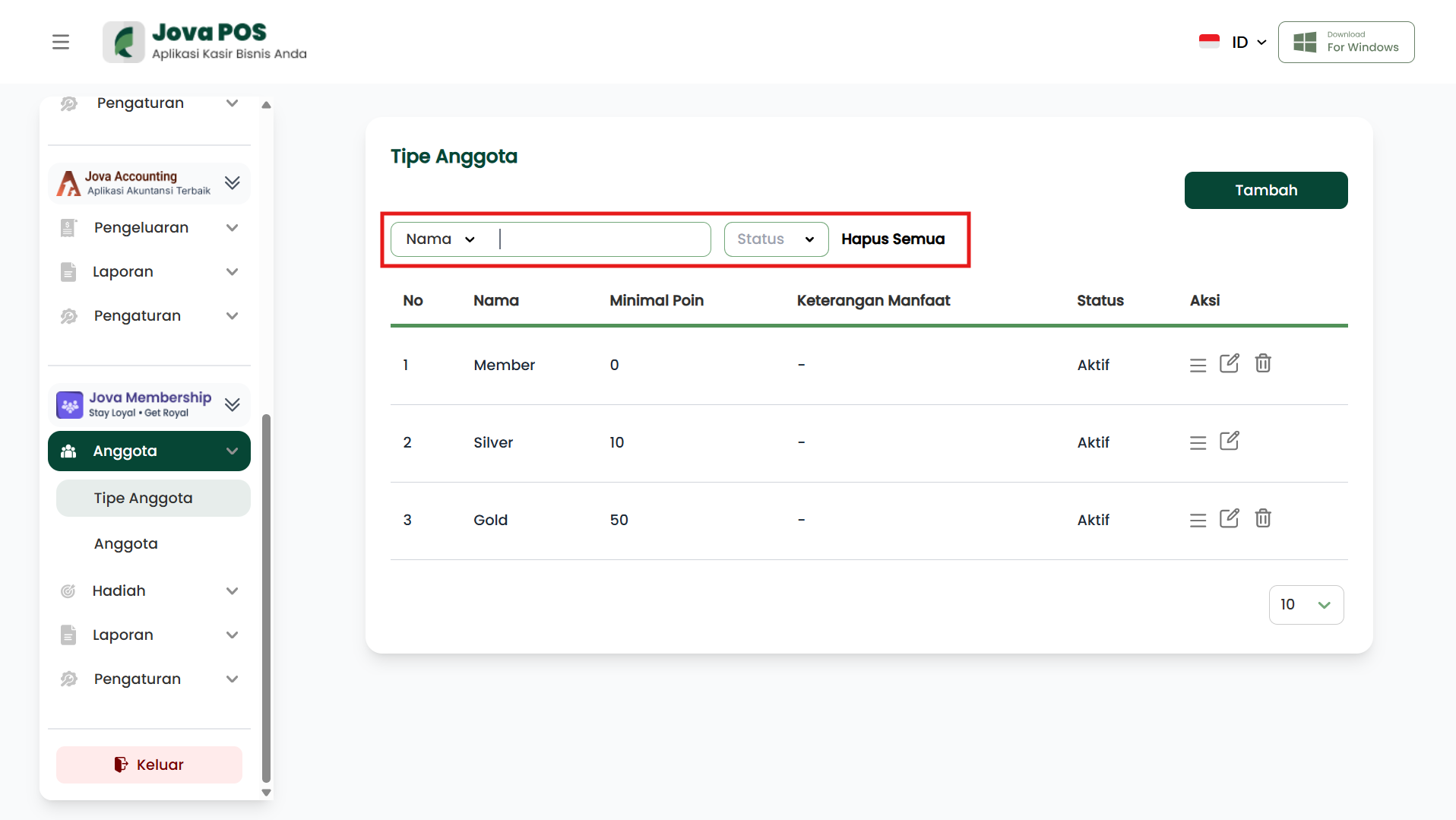
4. Filter and Search Member Types
You can search for member types using the search feature by Name or Status. These filters will help you find the desired member type quickly.
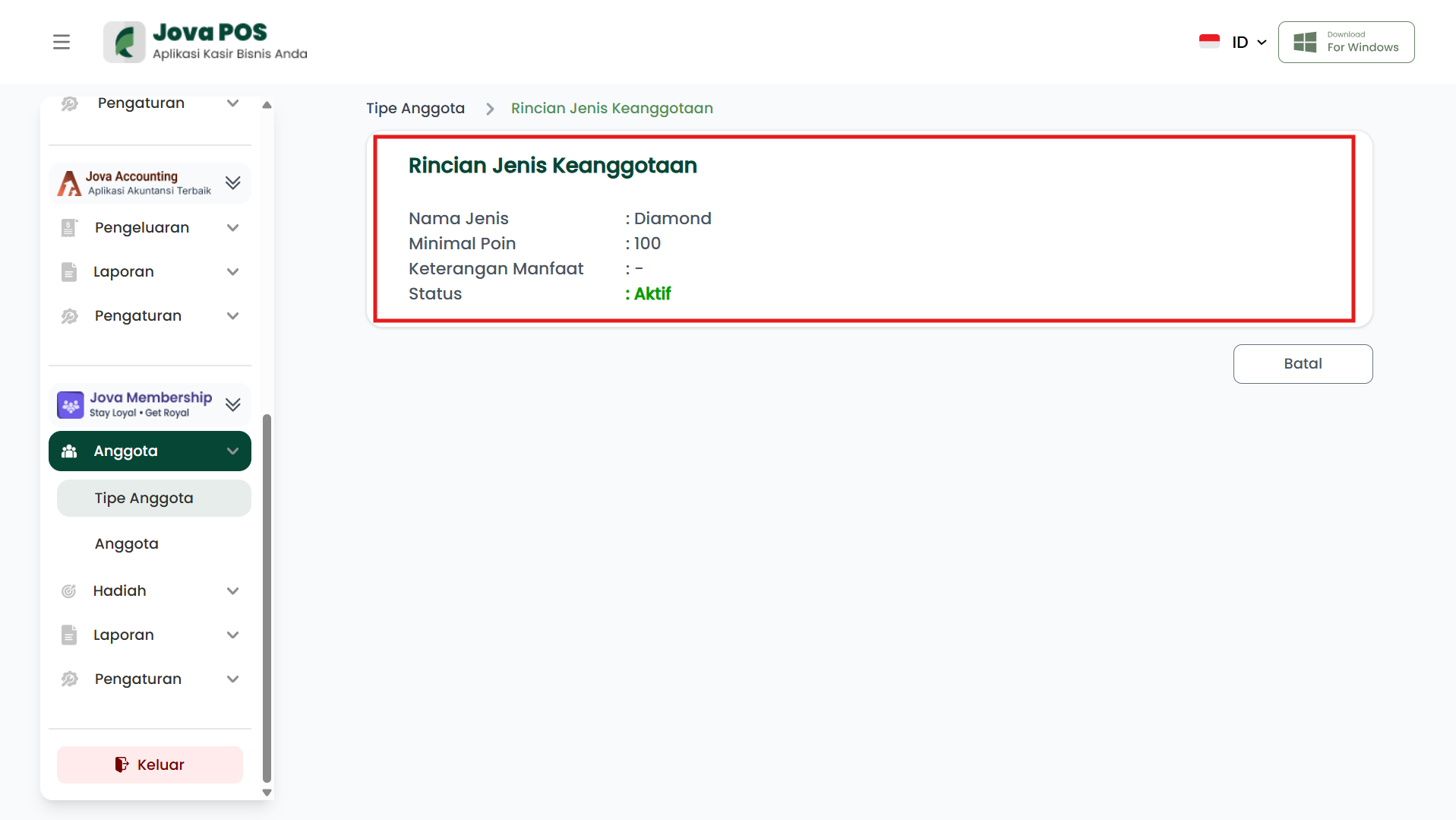
5. Member Type Details
To view further details of a created member type, follow these steps:
- Click the Details button to the right of the member type in the Action column.
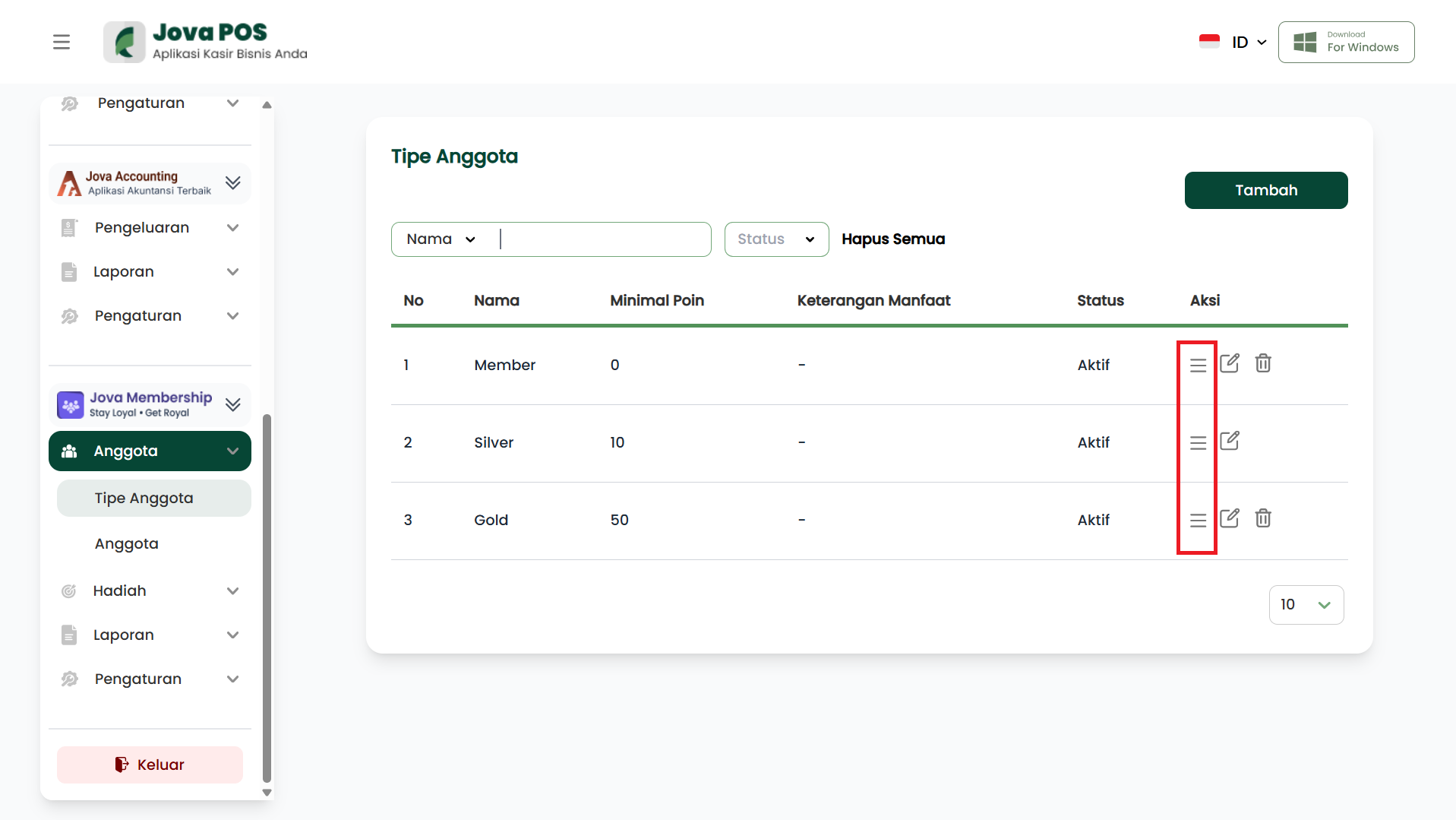
- You will be directed to a page displaying the details of the selected member type, including complete information about the Type Name, Minimum Points, Benefit Description, and Status.